AI generates the design; our pipeline traces it into a high-quality vector engraving, plus an optional outer cut outline. Open the file in LightBurn and burn.
1.Sign in with Google
2.Describe your design (or attach a reference photo)
3.Pick a mode — Engrave Only is the default
4.Click Generate
5.Download All — get PNG + SVG bundled in a zip
The result page shows your generated design plus a primary "Download All (.zip)" button and per-file pill buttons (PNG, Engrave SVG, and — for Cut + Engrave mode — a Cut SVG).
Four common goals, four worked examples. Each shows the prompt, the input, and what you get back.
A. Create a sign with custom text
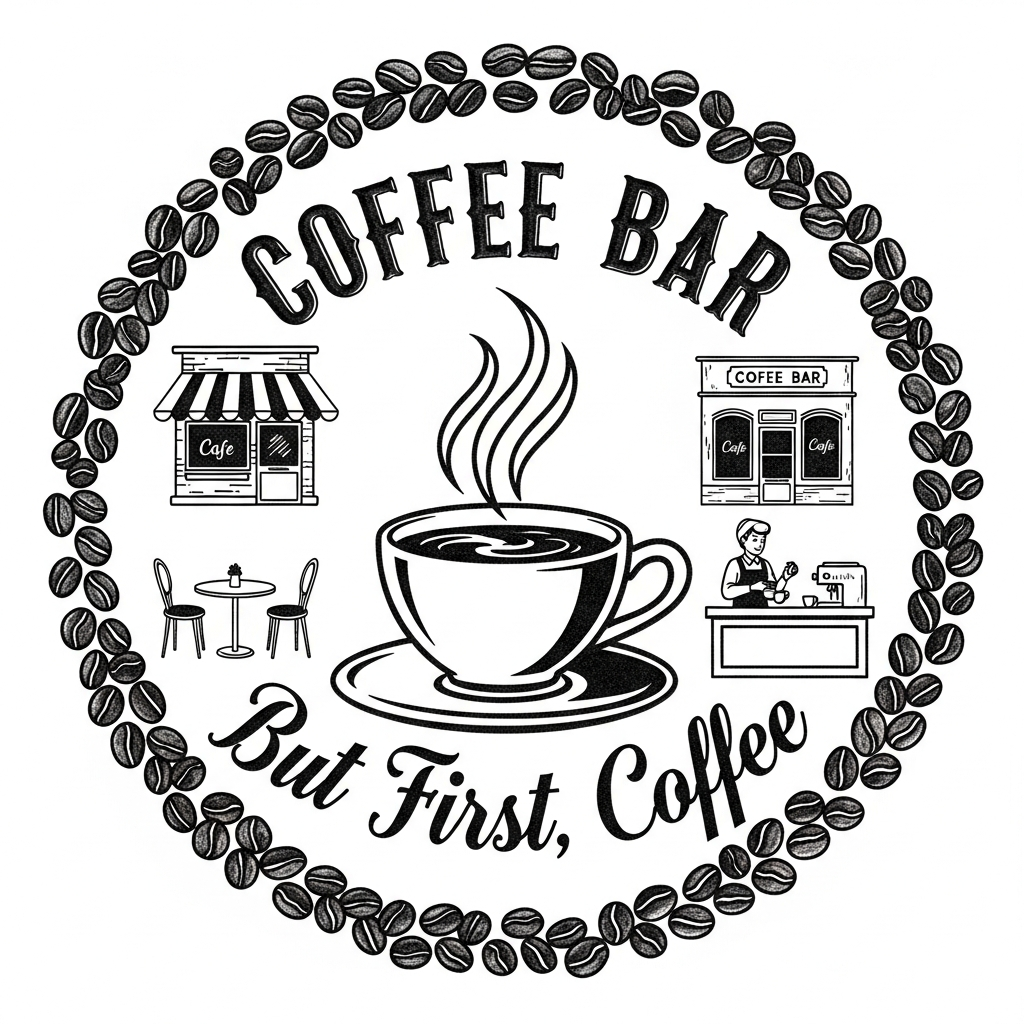
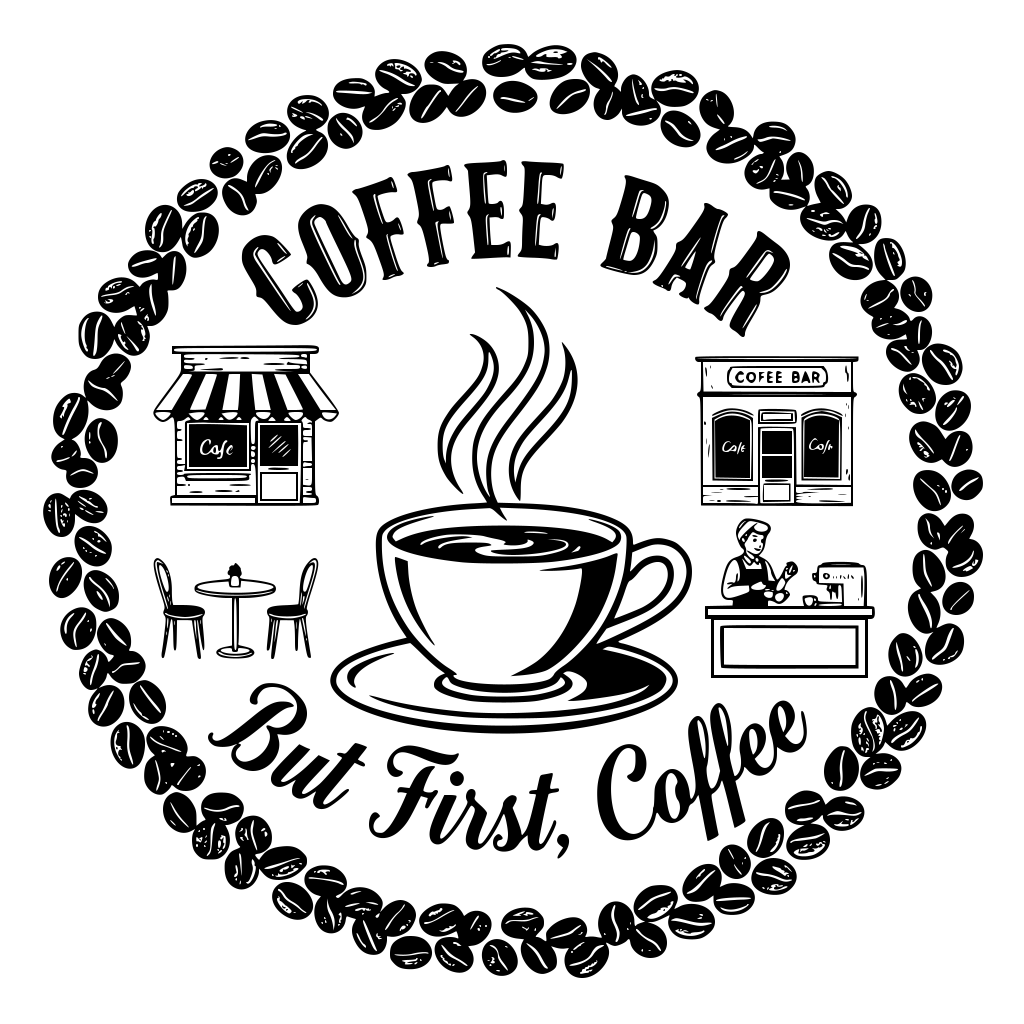
"I want a wooden sign for the kitchen that says 'Coffee Bar'." Tell the AI both the subject AND the text. Use quotes around the literal letters. Ask for "bold lettering" if you want chunky strokes.
Round coffee bar badge, "Coffee Bar" arched header text and "But First,
Coffee" curved bottom tagline, central coffee cup with steam rising,
decorative coffee bean border, vintage woodcut style
Generated PNGTraced engrave SVG
Avoid asking for color or shading words — your laser only sees black and white.
Mode: Engrave Only (default).
B. Engrave a family photo or portrait
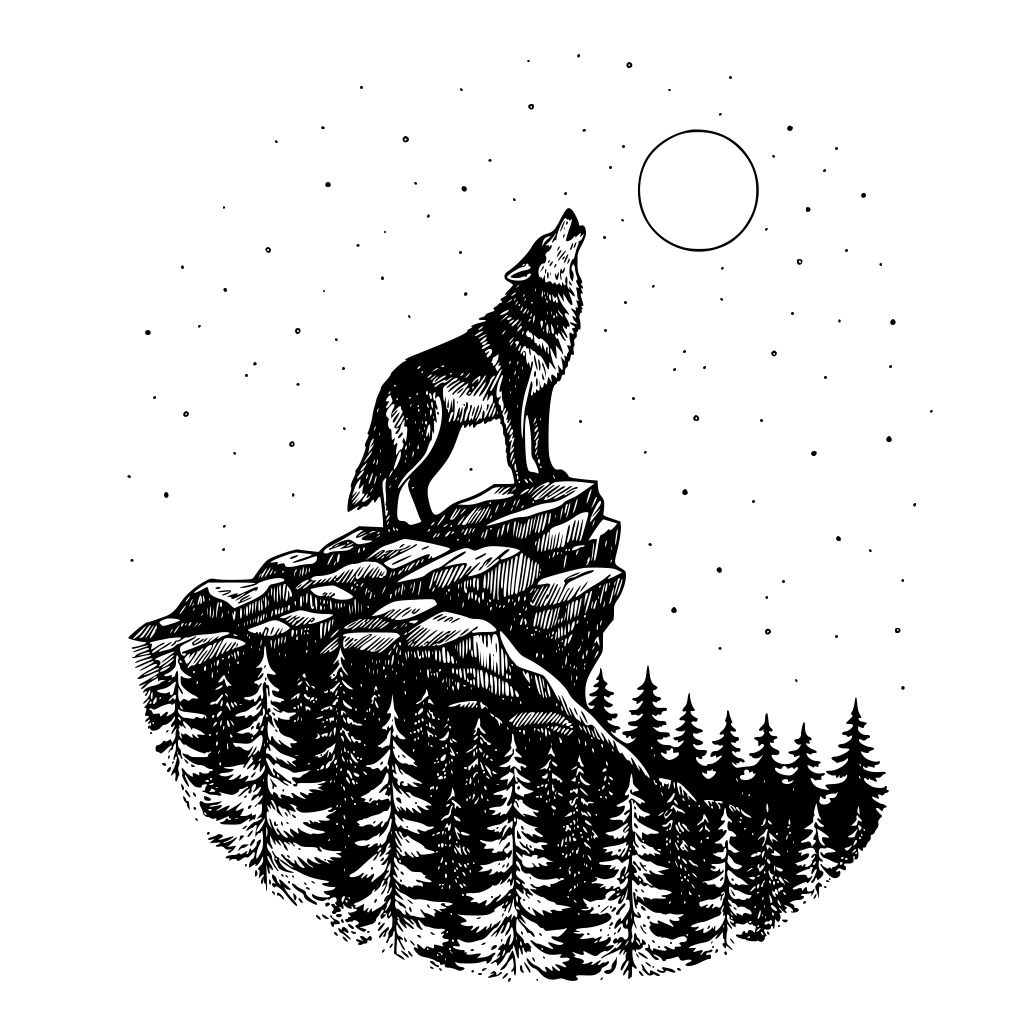
Click the paperclip in the prompt box, attach a photo. Add a short text description ("woodcut portrait of a golden retriever") to guide the AI. The AI uses your photo as a multimodal reference and generates a stylized B&W version. The traced SVG comes from that stylized output, not the raw photo.
Woodcut portrait of [your subject], bold strong lines,
high contrast black and white, fine crosshatching for shadow
Example: AI-stylized illustration from a photo reference (output is a stylized recreation, not a literal photo trace)
Photos with busy backgrounds, multiple subjects, or low contrast often produce muddy engravings. Crop to the subject before uploading.
Mode: Engrave Only.
C. Cut out an ornament with engraved detail
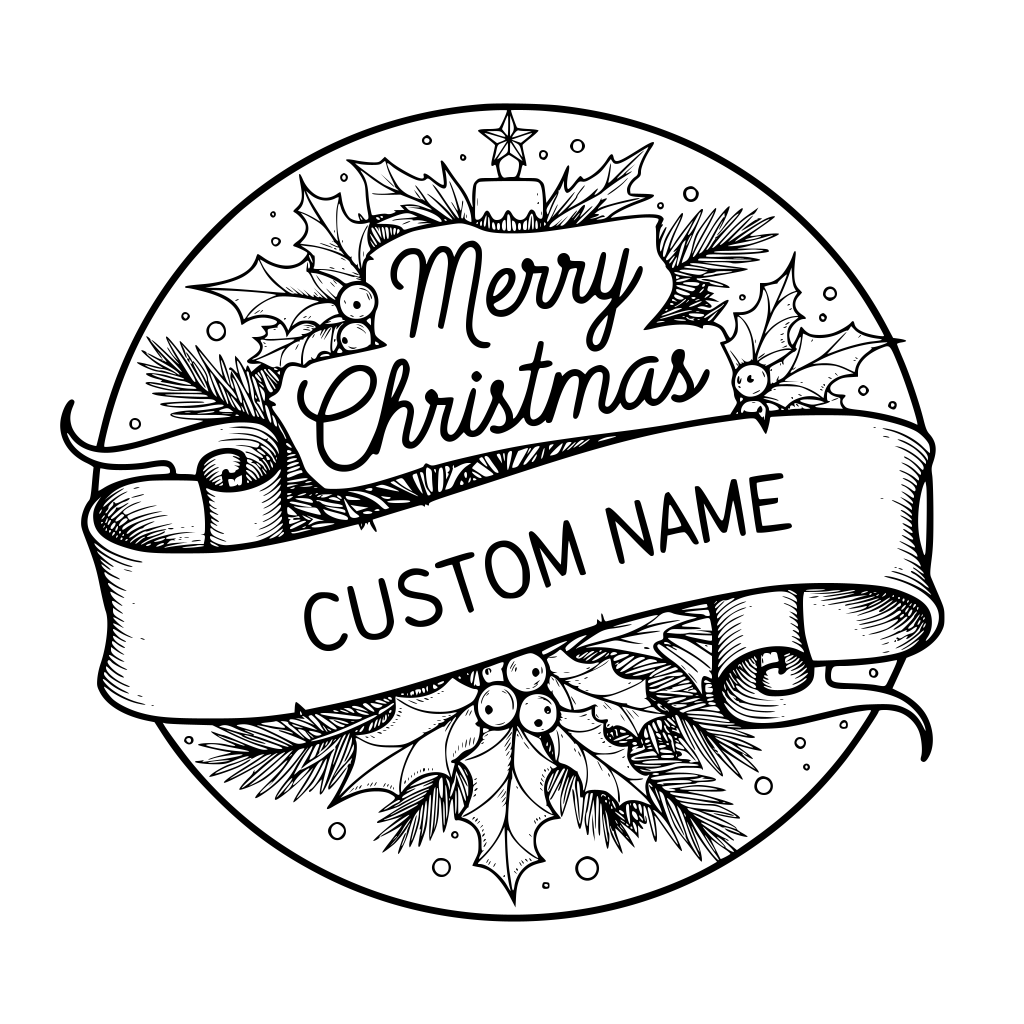
"I want to cut a holiday ornament with custom text engraved on it." Every generation produces 4 files in the zip: the original PNG, an engrave SVG (interior detail), a cut SVG (outer silhouette as red stroke for laser cutting), and a combined SVG (both layers in one Inkscape file).
Round Christmas ornament, "Merry Christmas" arched header script and a
"Custom Name" banner across the middle, holly and pine border around
the edge, vintage woodcut engraving style
The cut SVG follows the outer silhouette only — your laser cuts around the design. Everything inside ends up in the engrave SVG. Open both in your slicer and assign Cut and Engrave layers respectively.
Solid, connected shapes — badges, ornaments, one-piece silhouettes — produce the cleanest cut outlines. Enclosed white areas (letter counters, gaps between elements) are offered as optional interior cutouts on the result page: off by default, click to toggle on only the ones you actually want cut. Shading like crosshatch or stipple is engrave detail by nature — it's never cut.
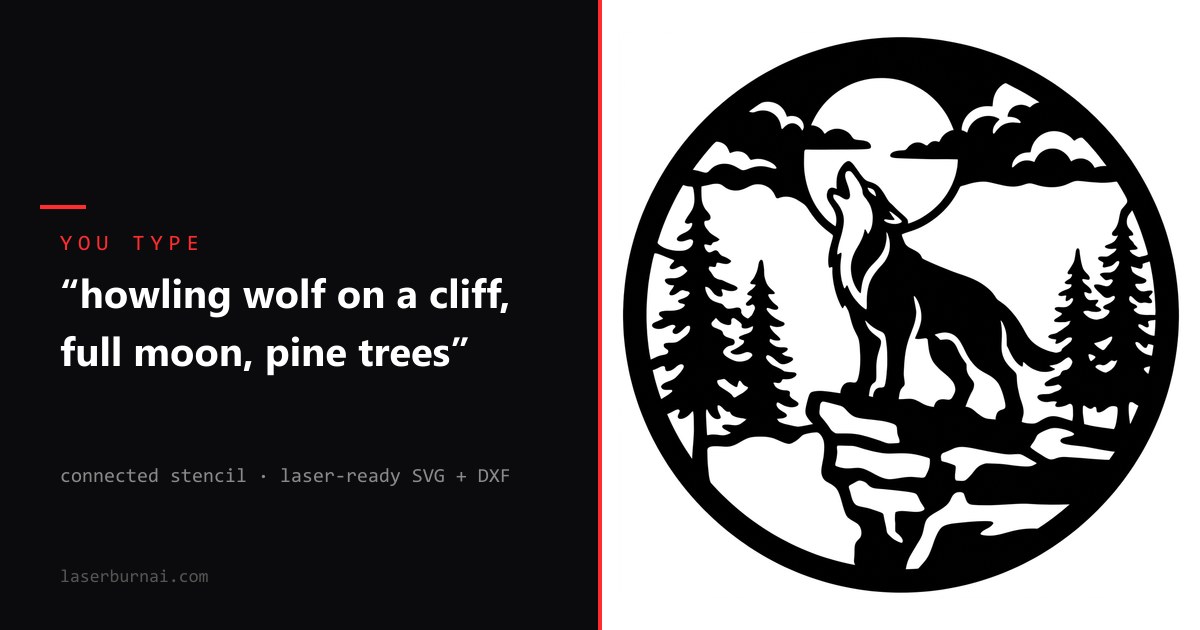
Connected Stencil
A one-piece laser-cut panel: the scene is carved out of a solid shape as openings, and every remaining piece stays physically attached — it lifts out of the laser bed as one solid object. 1 credit.
You type exactly two things: the scene and the panel shape ("round", "arched rectangle", "hexagon"). No bridge measurements — the AI designs broad connecting bridges automatically, and the cut path follows the panel perimeter.
Great for
Sturdy one-piece wall panels and silhouette art
Ornaments and gift tags that survive handling
Spray-paint / airbrush stencils that don't fall apart
Window and shelf decor cut from a single sheet
Not for
Realistic portraits or fine engraved shading
Designs needing loose, floating pieces
Layered Scene
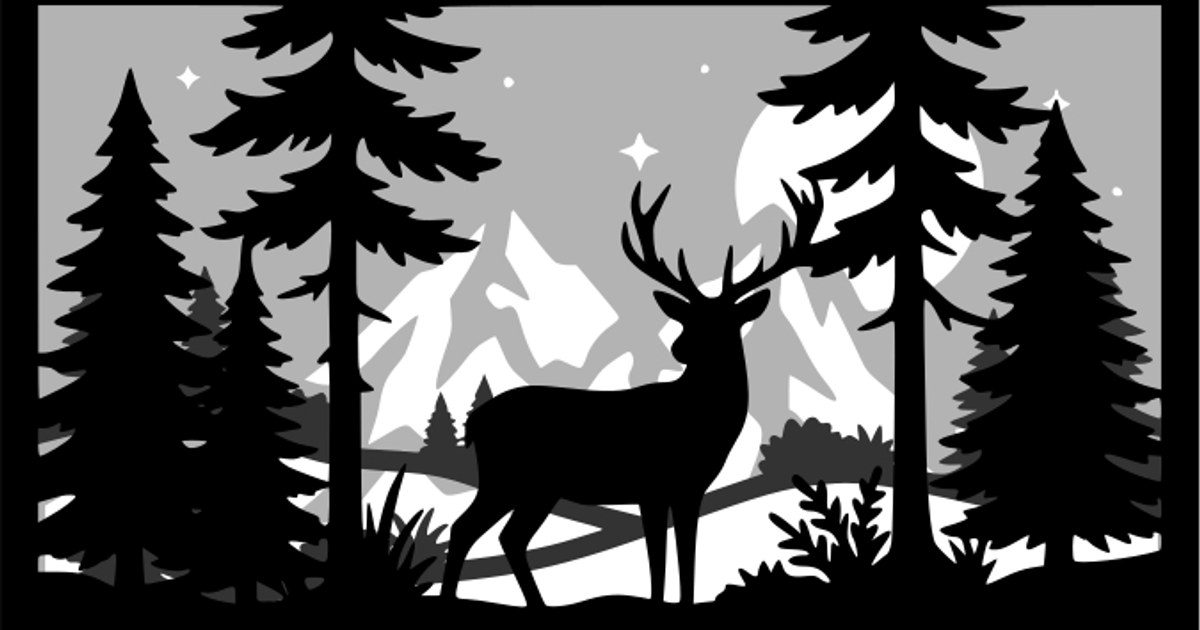
One scene description becomes a 3-layer stacked shadow box: three matching cut files that assemble front-to-back into a physical 3D piece. 2 credits.
The AI splits your scene into three depth layers — the subject up front, supporting scenery in the middle, and the sky as a mostly-solid back sheet with the moon, clouds, and stars as cutouts. Every layer shares the same rectangular outer frame, so the pieces line up when stacked. The layers are identified by position: layer 1 is the front, layer 3 is the back — glue everything onto the back sheet.
a deer in a pine forest under a full moon
Great for
Premium stacked wall art (3mm ply or acrylic)
Shadow boxes and lightbox inserts
Landscape scenes with a clear subject
Higher-priced listings — layered art sells at a premium
Good to know
ZIP contains layer-1-front, layer-2-middle, layer-3-back SVGs + a preview sheet
One layer came out wrong? Reroll just that layer for 1 credit — the other two stay put
Cut each layer from 3mm material, paint before gluing
Every successful generation produces the same four files in the zip. Open whichever you need in your slicer — your slicer is where you decide what gets cut vs. engraved.
yourname.png — the original AI-generated raster. Useful as a reference, or drop into your slicer for raster engrave modes.
yourname-engrave.svg — full image traced as a vector engrave layer. In LightBurn: set the layer to Fill mode for raster engrave, or Line mode for vector outlines only.
yourname-cut.svg — outer silhouette as a red stroke, plus any interior cutouts you toggled on. LightBurn imports it onto the Cut layer. Use it when you want to cut the design out of the material.
yourname-combined.svg — both engrave and cut layers in one file with named Inkscape groups. Drag-and-drop import; both layers come in pre-named "Cut" / "Engrave".
yourname.dxf — the same geometry as DXF (R12) with CUT and ENGRAVE layers in real millimeters, for RDWorks, xTool, CAD, and anything else that prefers DXF over SVG. Set the ENGRAVE layer to Fill mode — DXF has no fill concept of its own.
LightBurn tip: files import with named layers via Inkscape metadata. Set each layer's mode (Cut / Fill / Image) on first import — LightBurn remembers the assignment for repeat imports of the same file shape.
For multi-layer stacked builds, use the Layered Scene tool — it delivers three registered per-layer cut files (front / middle / back) from one prompt.
Credits & Pricing
Pay-as-you-go. 1 credit per generation (covers the AI image, the auto-trace, and the SVG output). Layered Scene is 2 credits — it generates and traces three registered cut files — and rerolling a single layer of one is 1 credit. Credits don't expire and there's no subscription.
Why is my engraving coming out too dark or too light?+
The engrave SVG vectorizes any pixel below the auto-detected brightness threshold. If your design has a lot of mid-tones, the threshold may not be ideal. Re-generate with a clearer "high contrast black and white" in the prompt, or open the SVG in Inkscape and adjust path fill density.
Will it cut out the white spaces inside my design?+
Not by default — LaserBurn is engrave-first. The cut SVG is the outer silhouette, and enclosed white areas (letter counters, gaps between design elements) stay as engrave detail. On the result page you can toggle individual interior cutouts into the cut file, or open the SVG in Inkscape and decide exactly what gets cut. Shading styles like crosshatch and stipple are engrave-only by nature — they can't be meaningfully cut.
Can I edit the SVG after I download it?+
Yes. The SVG opens in any vector editor (Inkscape, Illustrator, Affinity Designer). Layers come pre-named "Cut" and "Engrave" via Inkscape metadata.
Will this work in LightBurn / RDWorks / xTool?+
Yes for any slicer that imports standard SVG with stroke colors. LightBurn auto-routes red strokes to a cut layer and black fills to an engrave layer.
What happens if generation fails?+
We refund your credit automatically on AI generation failure. If the AI succeeds but tracing fails, you'll get the PNG only and your credit isn't refunded — you got the design.
Can I use generated files commercially?+
Yes — generated designs are yours to use commercially, including sales of finished pieces. Don't prompt for trademarked logos or copyrighted characters.
I want a feature you don't have. Where do I request it?+
Use the Support link in the footer or open an issue at github.com/Pardesco/laser-burn-ai.