Custom SVG Files for Your xTool, Generated by AI
Describe any design in plain English and get a clean SVG with separated cut paths and engrave detail — ready to import into xTool Creative Space. No Illustrator, no clip-art hunting, no manual tracing.
Make my xTool design →Sign in with Google · credits from $5 · files in seconds

Monogram with wreath — gifts, tumblers, and keepsake boxes
Examples made with LaserBurn AI
Monogram with wreath — gifts, tumblers, and keepsake boxes
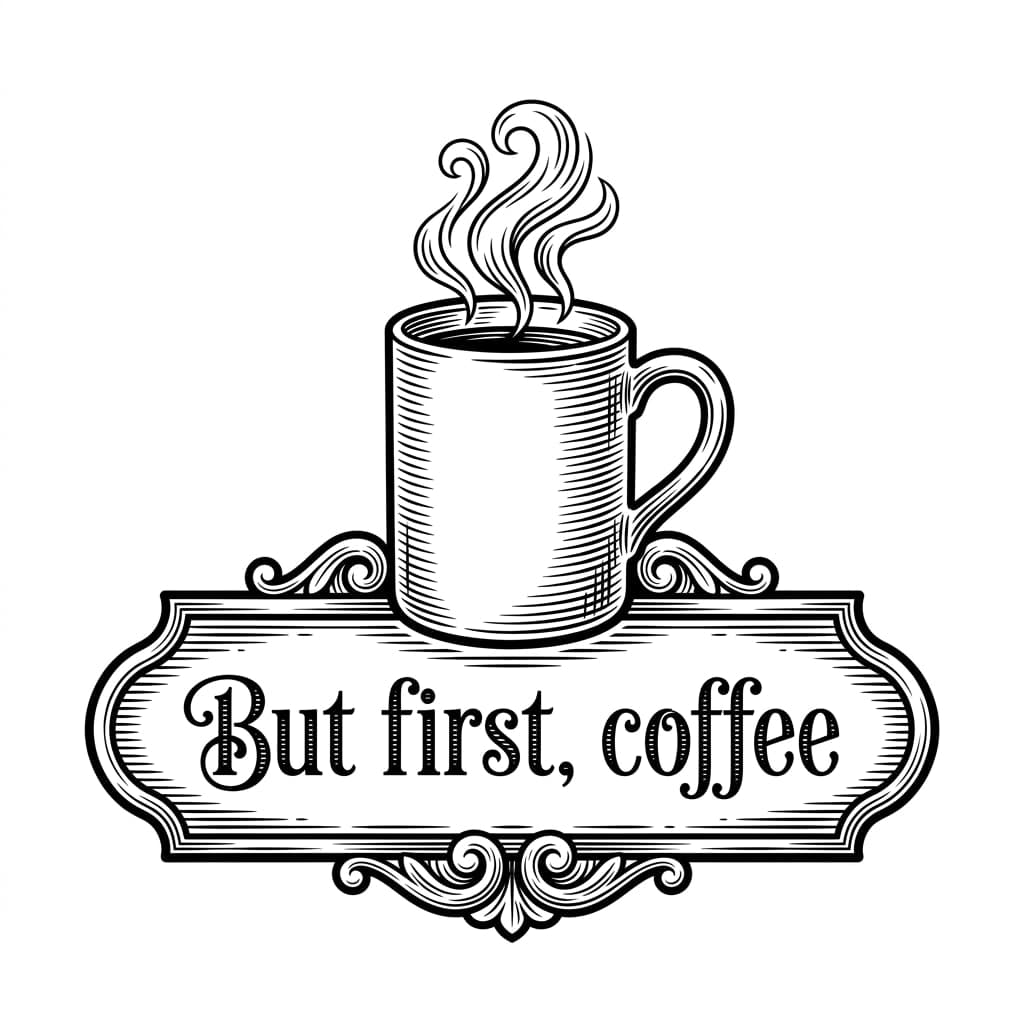
Quote sign — kitchen signs that sell
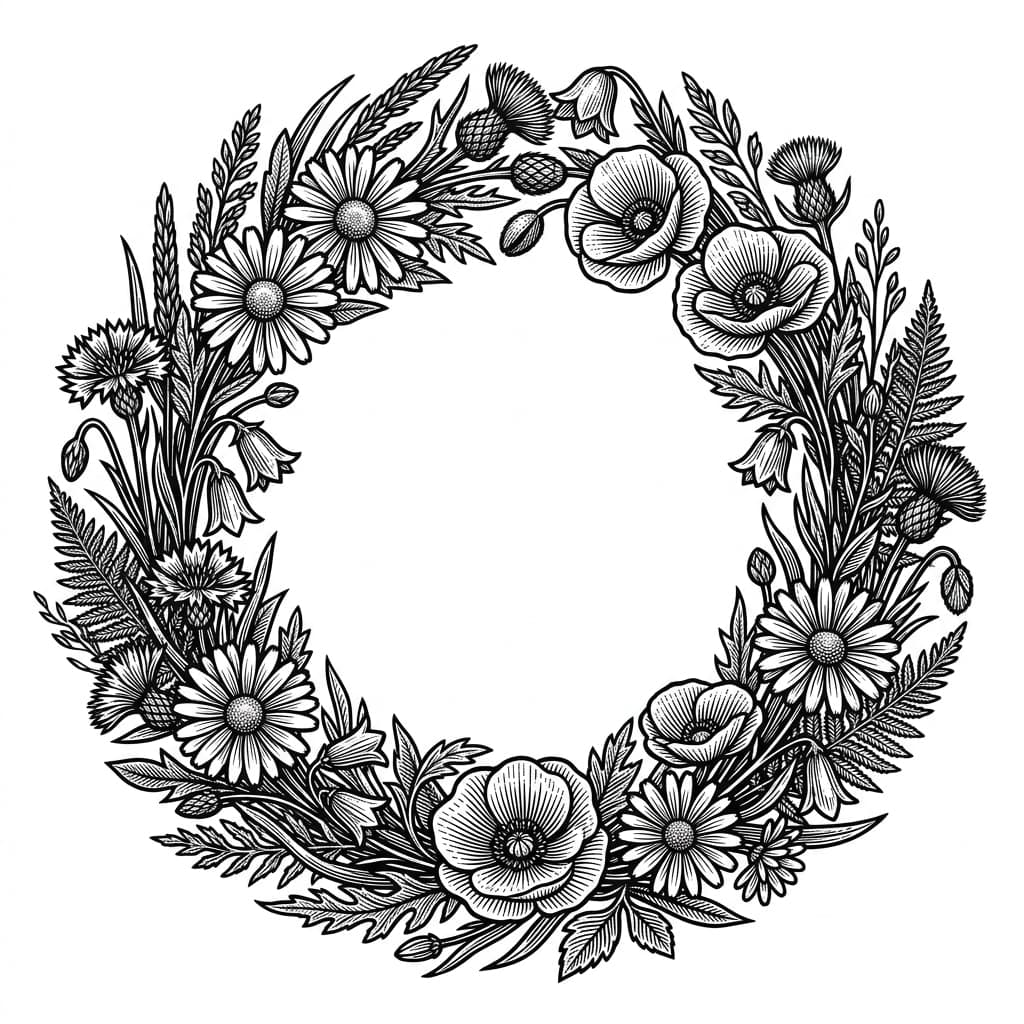
Floral wreath — wedding and home decor projects
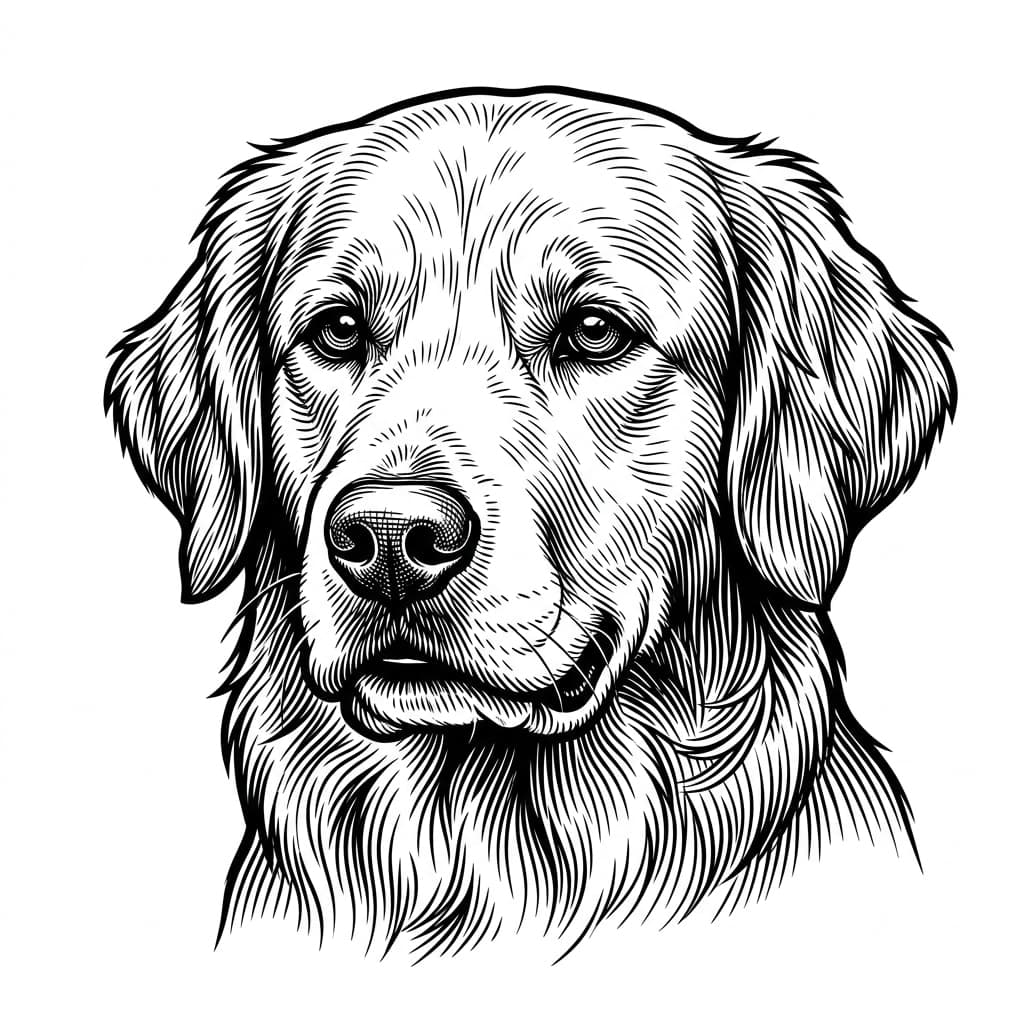
Pet portrait style — memorial plaques and ornaments
Stop hunting for xTool files — generate exactly what you need
Whether you run an M1, an S1, a P2, or a D1 Pro, the bottleneck is always the artwork. Free SVG sites have the same designs everyone else is cutting, marketplace files cost real money per project, and drawing your own means learning vector software. What you want is the design in your head — your customer's name, your dog's breed, your shop's slogan — as a file xTool Creative Space understands.
LaserBurn AI generates an original design from your description, then auto-traces it into a proper laser file: vector cut paths as clean strokes, engrave detail as a separate layer. Import the SVG into xTool Creative Space and assign cut, score, and engrave operations the way you always do — high contrast, no muddy gradients, and crisp legible text for names, dates, and quotes.
How to prompt a great xTool design
The generator reads plain English — no design jargon needed. A good prompt has three parts:
Describe the design
“a letter "M" monogram with a laurel wreath / a golden retriever portrait / a floral wreath”
Add any text in quotes
“hand-lettered "But first, coffee"”
Optional: name the style
“vintage woodcut, botanical illustration, hand-lettered script, geometric line art”
Full example prompt
A golden retriever portrait inside an oval floral frame, a banner reading "MAX", vintage engraving style
Try this prompt →How it works
- STEP 1
Describe your design
Type what you want to make — a monogram, a sign, a pet portrait, an ornament — including any names, dates, or quotes in quotation marks.
- STEP 2
AI generates & traces it
Our pipeline creates an original design with Google's Gemini image AI and auto-traces it into clean vector cut paths and a separate engrave layer.
- STEP 3
Import into xTool Creative Space
Download the SVG and PNG, import them into XCS, and assign your cut, score, and engrave settings as usual. Scale to any size with no quality loss.
Frequently asked questions
Do the files work with xTool Creative Space?
+
Yes. Every generation includes an SVG with vector cut paths and engrave detail, plus a transparent PNG engrave layer. xTool Creative Space imports SVG and PNG directly, and you assign cut, score, and engrave operations per layer as usual.
Which xTool machines do the files work with?
+
All of them. The files are standard SVG and PNG, so they work with the M1 and M1 Ultra, S1, P2 and P2S, D1 Pro, and F1 — anything that runs xTool Creative Space (or LightBurn, which many xTool owners use).
Can I use the files in LightBurn instead of XCS?
+
Yes. The SVG imports into LightBurn with the cut paths and engrave layer separated, so you can run your xTool from LightBurn with the same files.
How is this different from buying SVGs on Etsy?
+
Etsy files are fixed designs — you get what the seller drew. Here you describe exactly what you want and get an original design in seconds, with cut and engrave layers already separated. Credits start at $0.50 per generation, less than most marketplace files.
Can I sell what I make on my xTool?
+
Yes. Every credit bundle includes full commercial use rights, so you can sell the signs, ornaments, and gifts you cut and engrave from generated designs.
How much does it cost?
+
Membership starts at $5/month with 10 credits added monthly, or one-time packs start at $9 for 15 credits. Credits never expire. There is also a free bundle of 100 ready-made designs if you want to start cutting today.
Custom SVG Files for Your xTool, Generated by AI
Describe any design in plain English and get a clean SVG with separated cut paths and engrave detail — ready to import into xTool Creative Space. No Illustrator, no clip-art hunting, no manual tracing.
Make my xTool design →