Single Line Art: Turn Any Photo into a Plotter-Ready SVG
Seven ways to convert an image to single line art, shown on real output from our free generator, with the stroke counts and line lengths to help you pick one for your pen plotter or laser.
By Randall Morgan, founder of LaserBurn AI.
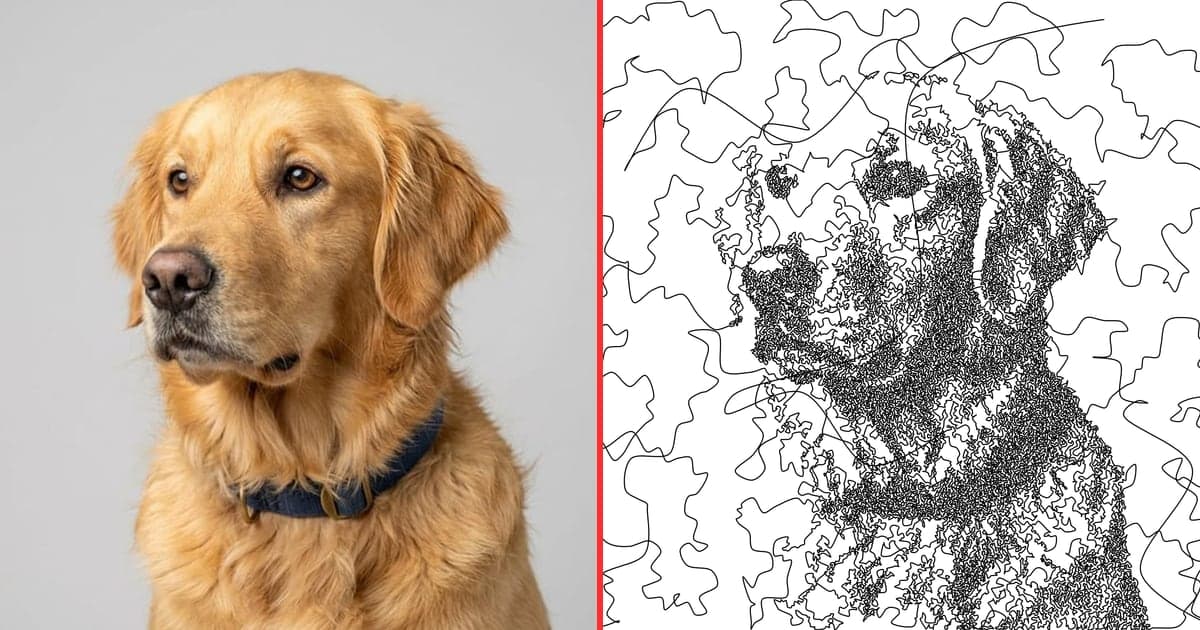
Single line art turns a photo into a drawing made from one continuous line, or very few of them. Dark areas get tight, dense line work and light areas stay open, so your eye rebuilds the picture from a single path. It looks hand-drawn, but it is an algorithm, and the output is a clean SVG that a pen plotter or laser can follow.
If you have been searching for an image to plotter workflow that does not involve installing Python tools, you can do it in the browser. The free single line art generator takes a photo, runs it through one of seven styles, and gives you an SVG with stroke paths sized in real millimeters. Everything below was made with that tool.
How image to single line art conversion works
Every style does the same basic job: read the brightness of each part of the image, then decide how much line to draw there. They differ in how the line behaves. Some styles keep the pen down the whole time. Others use many separate strokes, which is faster to compute but means more pen lifts on a plotter.
- Tone becomes density. Shadows get more line per square millimeter, highlights get less. That is the whole trick.
- The file is stroke-only. There are no filled shapes, which is what plotter software expects. Line width is set to 0.35 mm.
- Paths are sorted. The tool reorders strokes to cut down on travel between them, so the pen spends less time moving without drawing.
- It runs on your device. Your photo is processed in the browser. Nothing is uploaded.
The seven styles, compared on real photos
Each image below is unedited output from the generator at its default settings: Detail at balanced, 200 mm wide. The golden retriever and German shepherd are the sample photos built into the tool, so you can try the exact same inputs yourself.
Scribble style
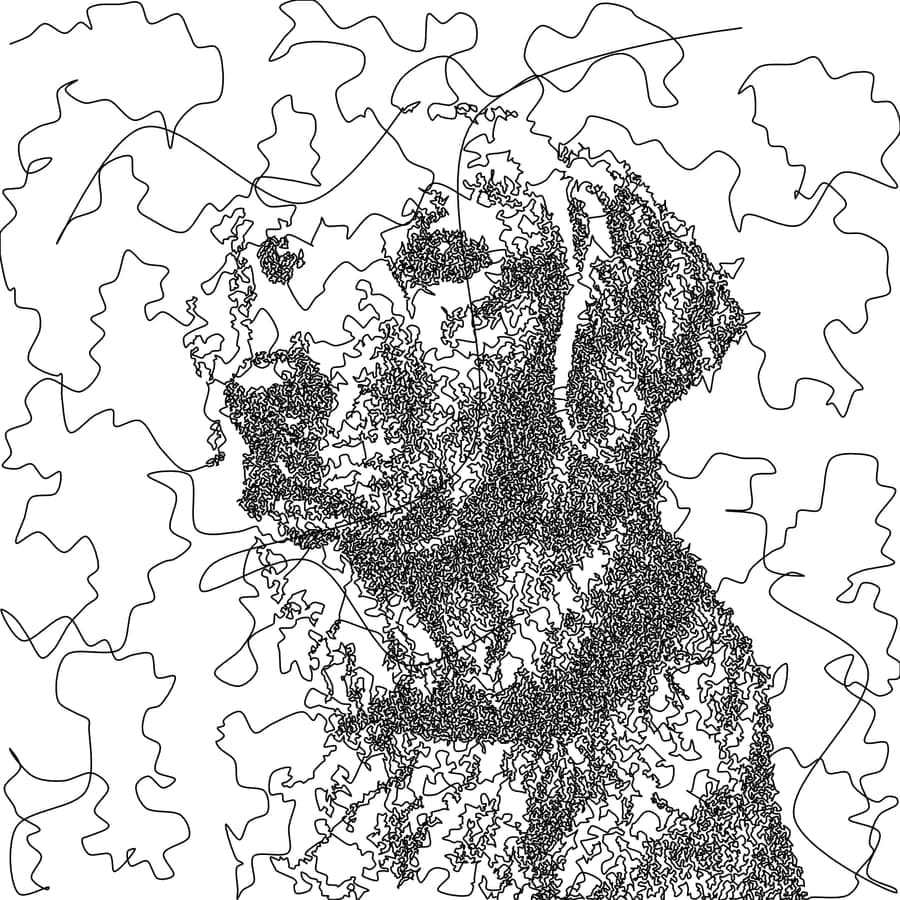
One loose, hand-drawn looking line that curls tightly in shadows and loops wide across highlights. It is the closest match to what people mean when they search for "single line drawing" or "one line portrait", so it is the default style in the tool. It reads well on faces and animals with strong dark features.
Meander style
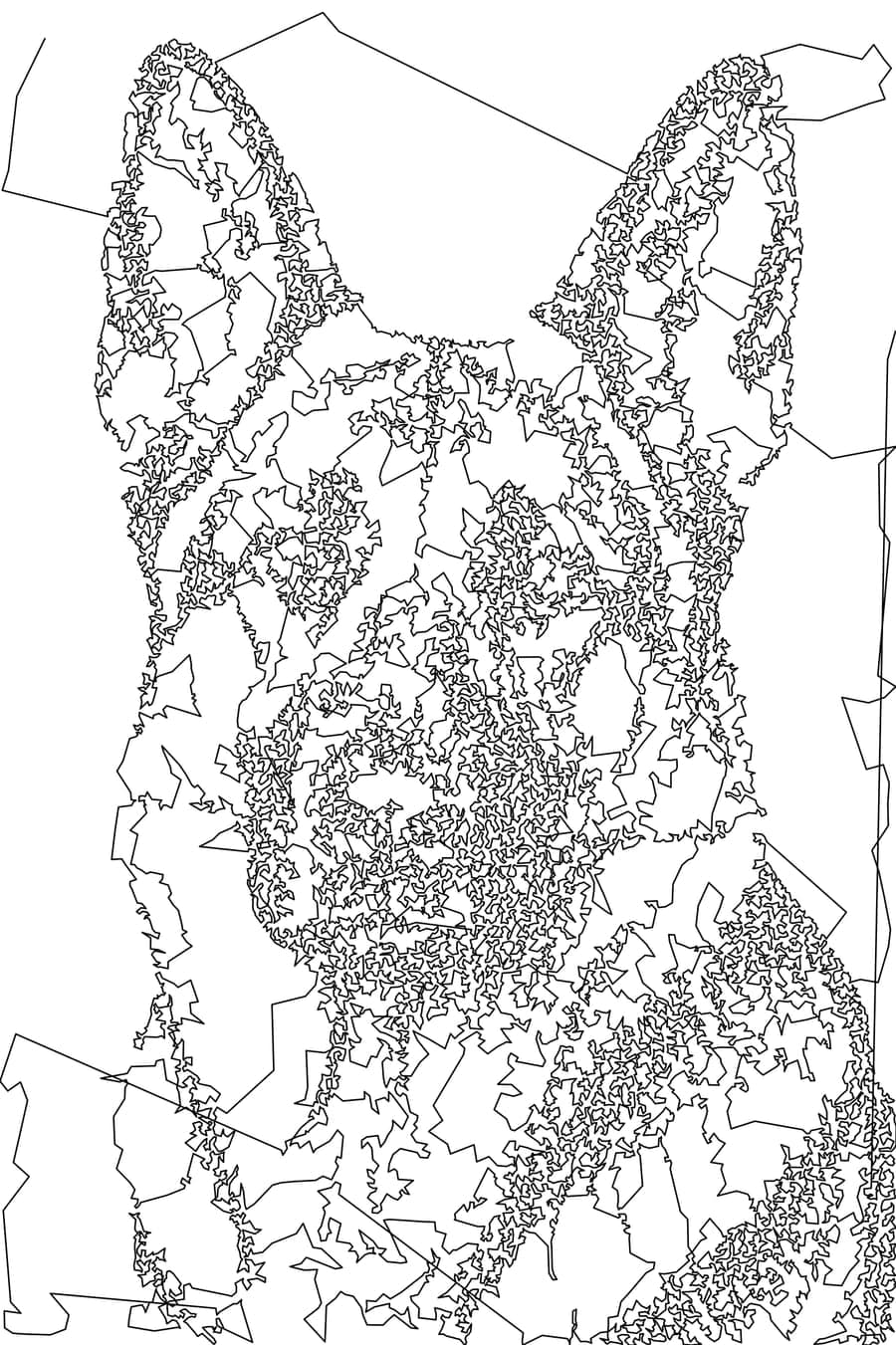
This one is the TSP-art cousin. The tool places points where the photo is dark, then threads one path through all of them. The result is tighter and more textured than Scribble. You may see a few long straight connectors where the path jumps between regions, which is normal for this technique.
Squiggle style
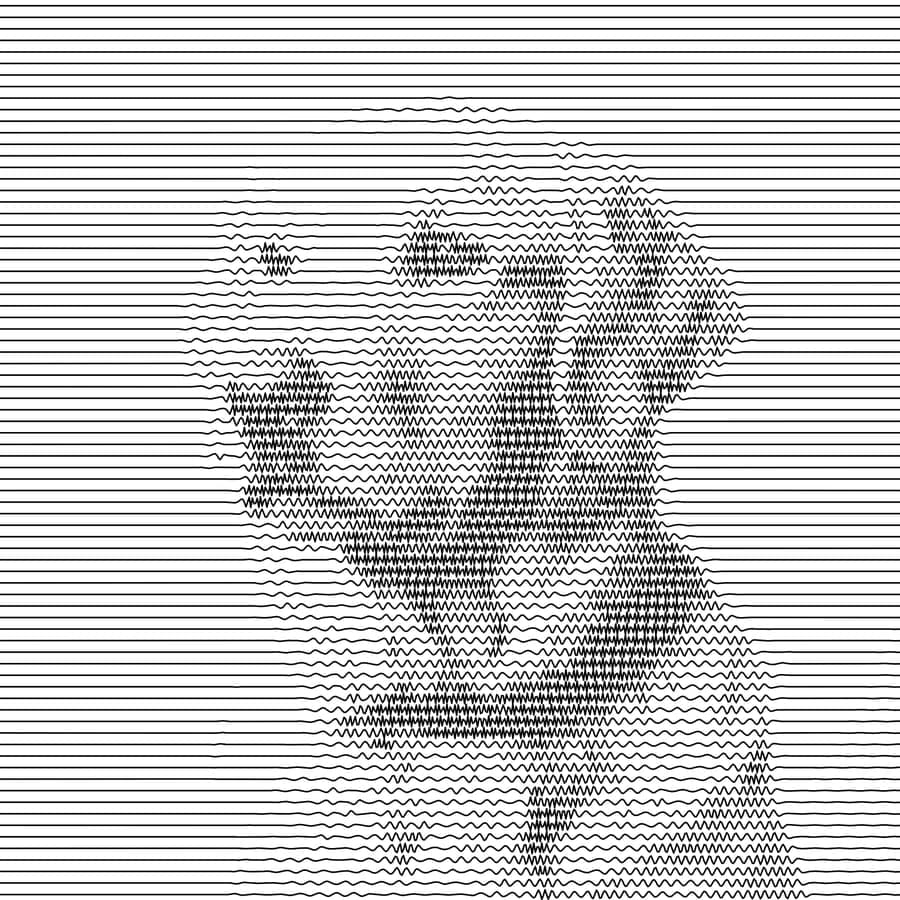
Horizontal rows of sine waves, the wavy-line poster look. Dark areas get taller, tighter waves and light areas stay nearly flat. Because it is made of rows, it plots in an orderly, predictable way.
Spiral style
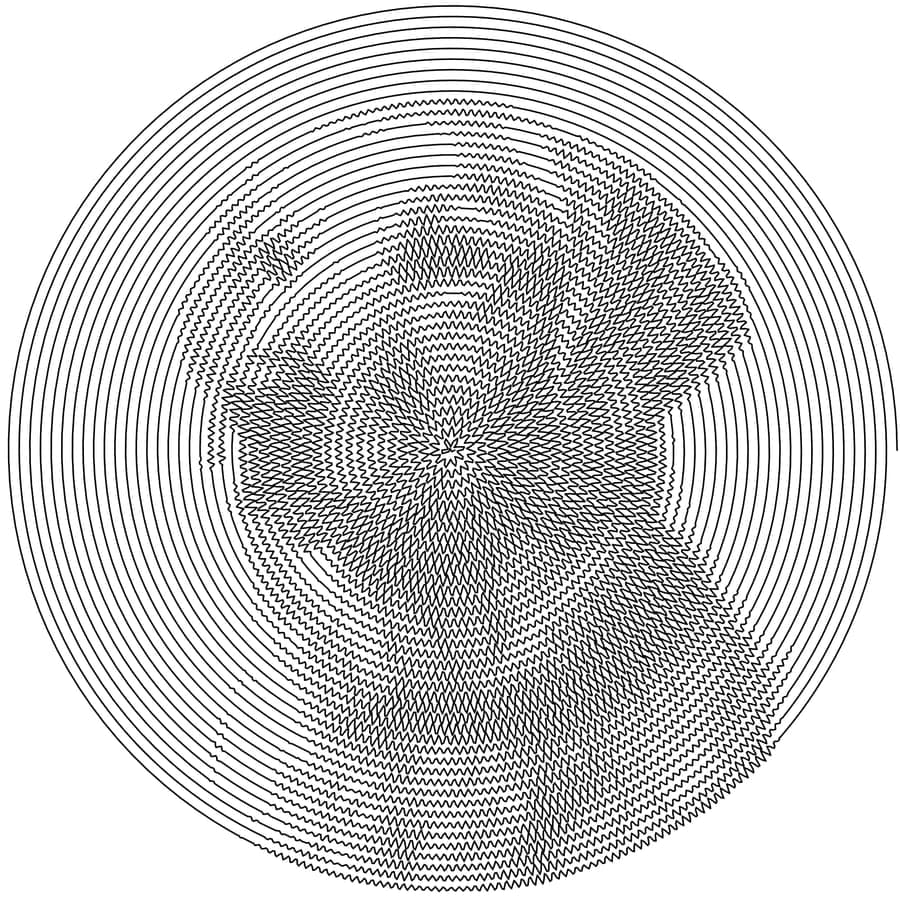
Your photo as a single spiral that starts at the center and winds outward, with the wave in the line following the image tones. It is the clearest example of a pen that never leaves the paper, and it makes a good record-cover or coaster shape for laser work.
Flow Field style
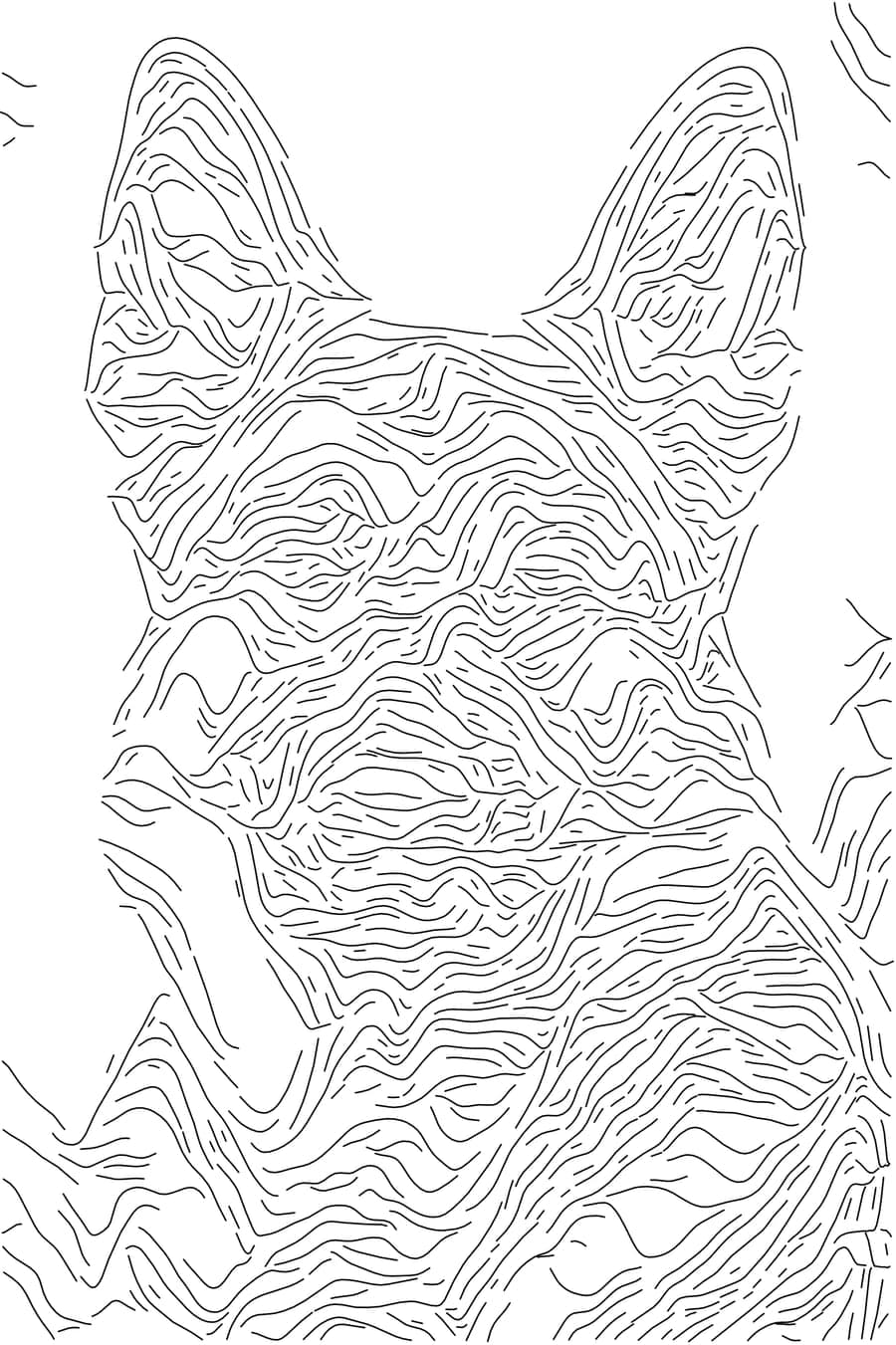
Short streamlines that follow the direction of the image, a bit like brush strokes. It used the least line of the seven on our samples, so it plots fast. It is the most abstract style, and it works best on subjects with visible texture such as fur or hair.
Crosshatch style
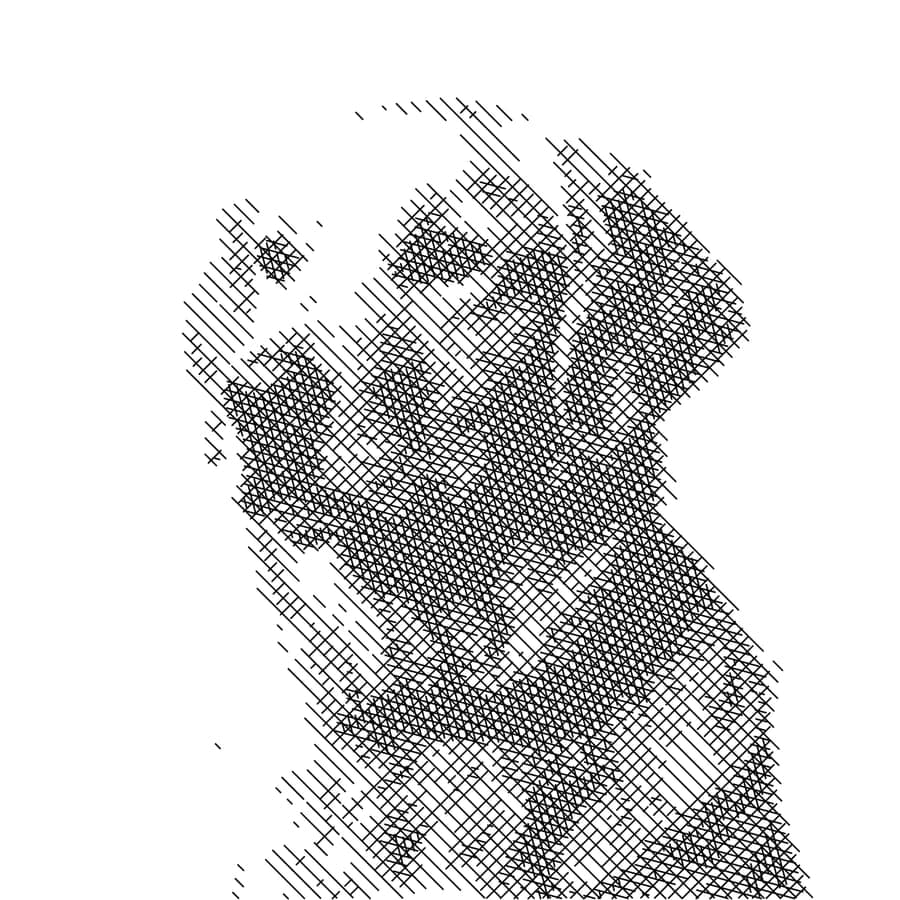
Straight lines in layers, with more layers added in darker bands. It looks the most like a traditional pen drawing. The cost is pen lifts: every hatch line is its own stroke, so expect more travel between strokes than the one-line styles.
Contour style
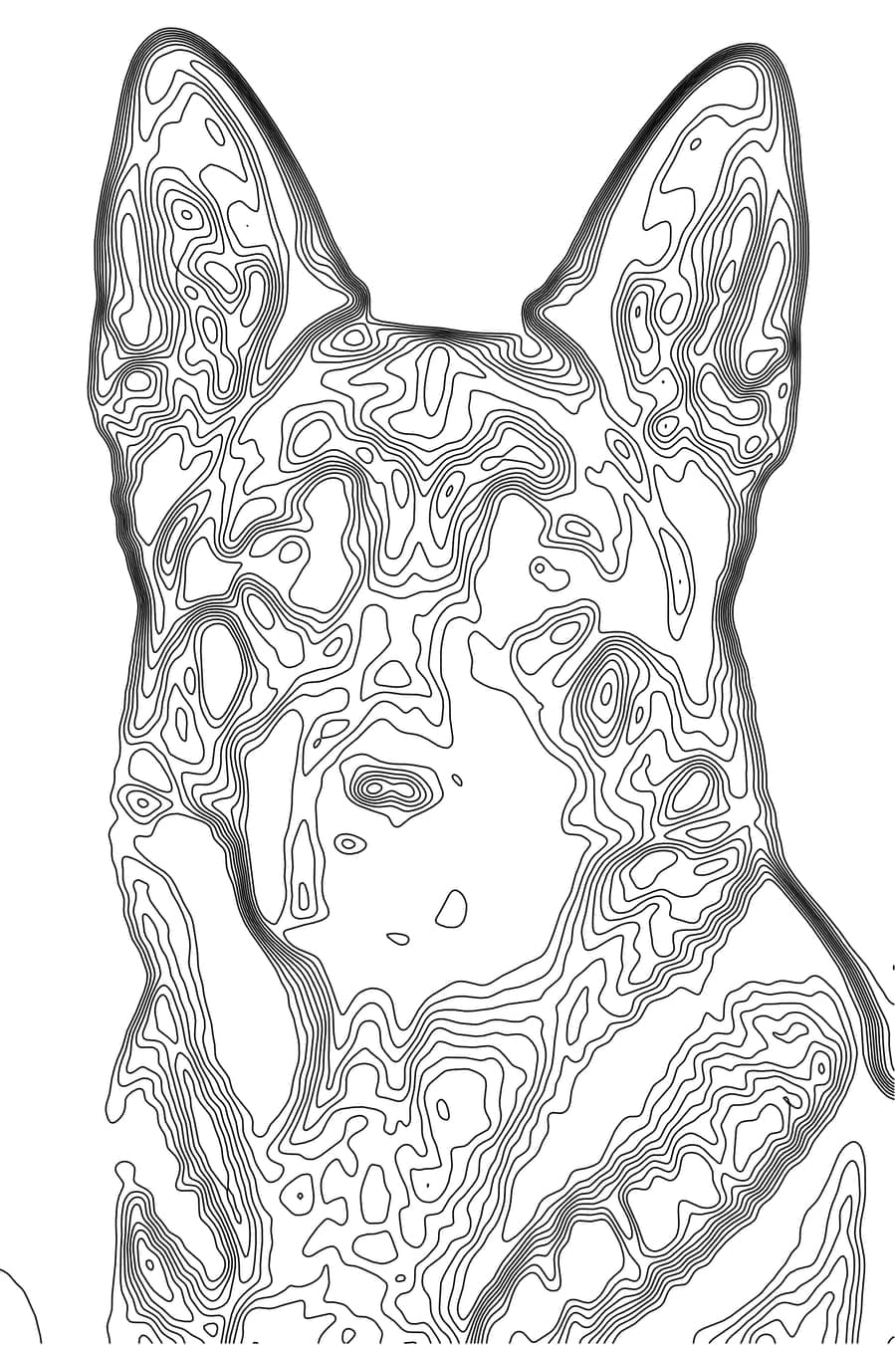
Marching-squares contour lines that treat brightness as elevation, like a topographic map of your photo. It is graphic and poster-like, and it holds up well when you scale it large.
You can see all seven side by side on the single line art generator page, where they are generated from one studio portrait.
Which style should you pick?
| Style | Strokes | Best for |
|---|---|---|
| Scribble | 1 | Portraits and pets, hand-drawn feel |
| Meander | 1 | Textured, stippled look; TSP art fans |
| Spiral | 1 | Round pieces, coasters, a bold graphic effect |
| Squiggle | 78 | Orderly plots and wavy-line posters |
| Flow Field | 813 | Fast, abstract, fur and hair texture |
| Crosshatch | 1,024 | Traditional pen-and-ink look |
| Contour | 179 | Graphic, poster-style, scales up well |
Stroke counts are from the sample photos above at default settings. Your numbers will change with the photo and the Detail slider.
How to convert an image to a plotter file
- Pick a photo with contrast. A face or animal against a plain background is ideal. Or tap one of the sample photos in the tool.
- Choose a style. Start with Scribble. Switching styles regenerates the drawing from the same photo, so try a few.
- Adjust Detail. Sparse is faster and more open, Dense gives more tone. Open the advanced options to invert tones, turn auto-clean off, or set the output width.
- Download the SVG. The filename includes the style and width, for example
single-line-art-scribble-200mm.svg. - Open it in your plotter or laser software. Inkscape, vpype, and AxiDraw tools read it as stroke paths. LightBurn imports it at the millimeter size you set.
Tips for better results
- Crop tight on the subject. Line is spent on the whole frame, so empty background steals detail from the face.
- Boost contrast before you upload if the photo is flat. Every style maps darkness to line density, so an evenly lit image gives even, flat results.
- Match output width to the job. The default is 200 mm. A larger size spreads the same line further apart, so check the preview before you commit.
- Test on scrap with a laser. One long continuous path can build up heat where the line is dense. Do a small test before committing a good piece of wood.
- Want a filled engraving instead? Line art is one approach. For a tonal raster engraving, try the photo to engrave tool.
Frequently asked questions
What is single line art?
Single line art is a drawing made from one continuous line, or from as few lines as possible, so the pen or laser follows a path without lifting. Generators like this one turn a photo into that kind of path by mapping dark areas to denser, tighter line work.
How do I convert an image to a pen plotter file?
Upload a photo to the single line art generator, pick a style, set the output width in millimeters, and download the SVG. Pen plotter software such as Inkscape with a plotter extension, vpype, or AxiDraw tools reads SVG stroke paths directly. The file is all strokes with no fills.
Is the single line art generator really free?
Yes. It is free, it runs in your browser, and the SVG downloads without an account. Your photo is processed locally and is not uploaded to our servers.
Which style should I use for a pen plotter?
If you want the pen to stay down, use Scribble, Meander, or Spiral, which each produce a single stroke. If you want a classic ink look and do not mind pen lifts, use Crosshatch. Squiggle and Flow Field sit in between.
Can I use the SVG on a laser engraver?
Yes. The paths are open strokes sized in real millimeters, so they import into LightBurn or similar software at the size you chose. Set the layer to Line mode, and test speed and power on scrap first, because a continuous path concentrates heat wherever the line is dense.
What photos work best?
High-contrast photos with a plain background work best, such as a portrait on a studio backdrop. Auto-clean is on by default and removes uniform backgrounds, so a dog photographed against a beige wall still gives a usable result. Flat, evenly lit images give flat, even line work.
Ready to try it? Open the single line art generator, or see the rest of our free laser cutting and engraving tools. If you work with traced artwork, the PNG to SVG converter is a good companion.